After your purchase購入後の操作
Three steps, about five minutes. Check the e-mail, install the app, enter your licence key. 全体で 3 ステップ、5 分ほどです。メールを開き、アプリを入れ、ライセンスキーを入力します。
-
Step 1
Open the e-mailメールを確認する
Download link and licence key ダウンロードリンクとライセンスキー
-
Step 2
Download and installダウンロードして入れる
Windows may show a warning — see below Windows の警告が出ます(対処は下記)
-
Step 3
Enter the licence keyライセンスキーを入れる
Copy and paste from the e-mail メールからコピー&ペースト
1 Open the e-mailメールを確認する
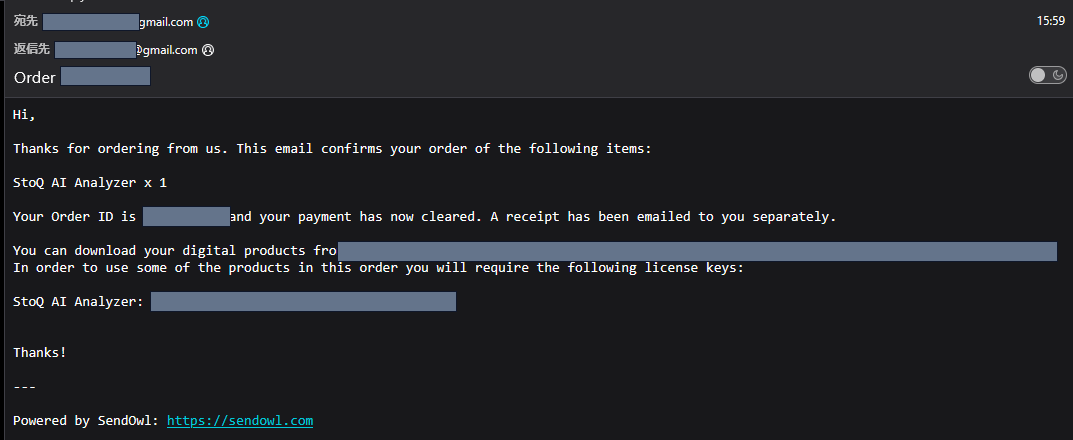
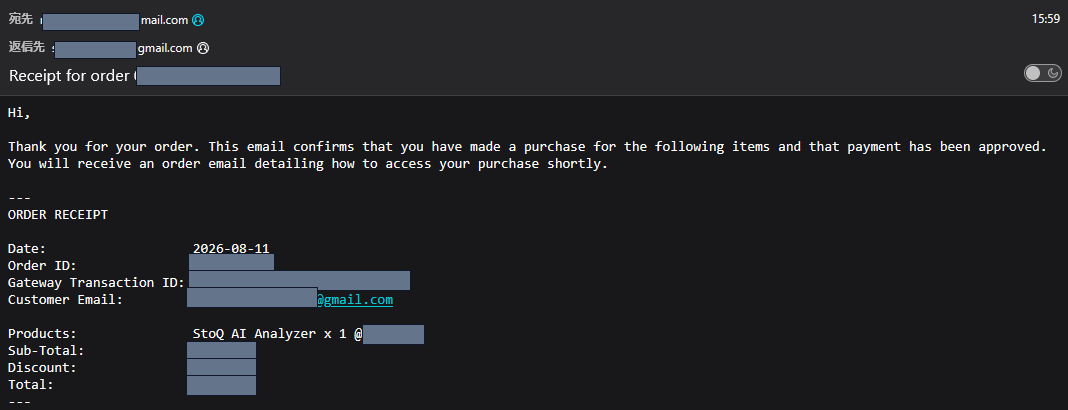
When the payment goes through, SendOwl (noreply@sendowl.com)
sends an order e-mail to the address you used at checkout. It normally arrives within a
few minutes.
決済が完了すると、SendOwl(noreply@sendowl.com)から
ご購入時のメールアドレス宛に注文メールが届きます。通常は数分以内です。
Two things in it matter:
見るところは 2 つです。
-
The download link — this is where the
installer (
.exe) comes from. ダウンロードリンク —— インストーラー(.exe)はここから取得します。 -
The licence key — a string starting with
Vand a number (V1-for the current version). You enter it once, inside the app. ライセンスキー ——V+数字で始まる文字列です (現行版はV1-)。アプリ内で一度だけ入力します。
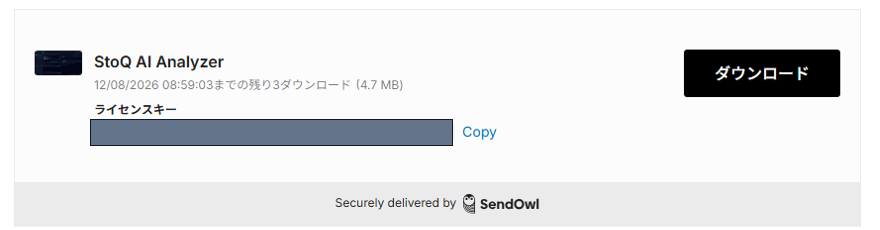
You can also download straight after checkout 購入直後の画面からもダウンロードできます
The page shown right after payment has the same download button and licence key. That page expires 24 hours after purchase, so if you plan to install later, use the link in the e-mail instead.
決済直後に表示されるページにも、同じダウンロードボタンとライセンスキーがあります。 このページは購入から 24 時間で期限切れになりますので、 あとで入れる場合はメールのリンクをお使いください。
2 Download and installダウンロードして入れる
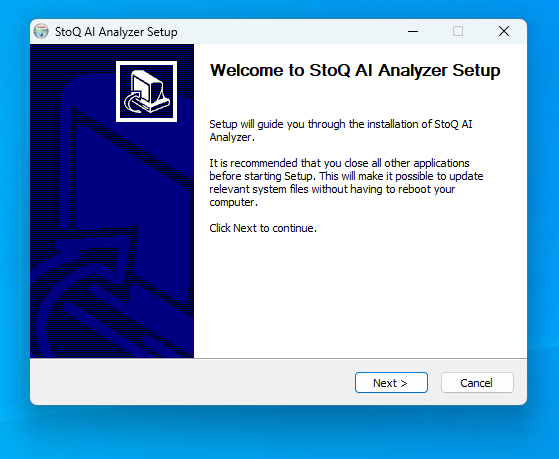
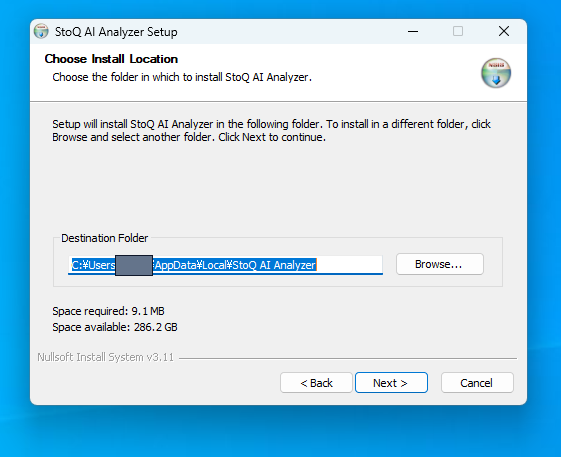
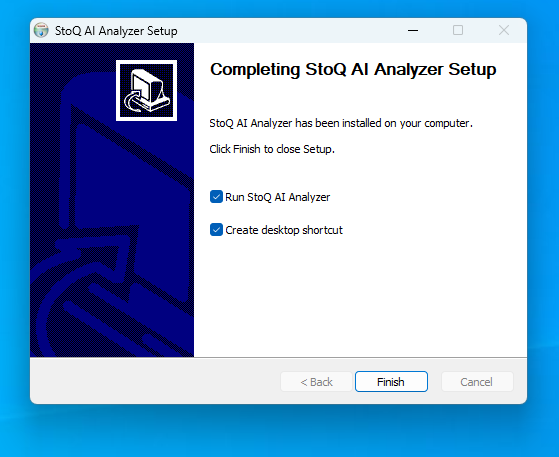
Download StoQ_AI_Analyzer_x64-setup.exe from the link,
then double-click it.
リンクから StoQ_AI_Analyzer_x64-setup.exe をダウンロードし、
ダブルクリックで実行します。
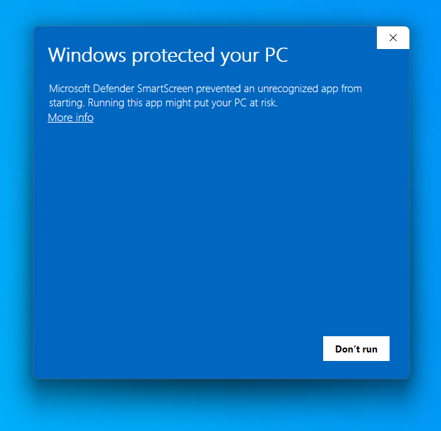
Windows will show a warning. This is expected. Windows の警告画面が出ます。想定どおりです。
StoQ AI Analyzer is built by an individual developer and does not carry a commercial code-signing certificate, so Microsoft Defender SmartScreen shows “Windows protected your PC”. It does not mean anything is wrong with the file.
本アプリは個人開発のため、商用のコード署名証明書を付けていません。そのため Microsoft Defender SmartScreen が 「WindowsによってPCが保護されました」 と表示します。ファイルに問題があるという意味ではありません。
-
1. Click More info 1. 詳細情報(More info)をクリック
Only “Don’t run” is visible at first. The run button appears after this. 最初は「実行しない」しか出ていません。押すと実行ボタンが現れます。
-
2. Click Run anyway 2. 実行(Run anyway)をクリック
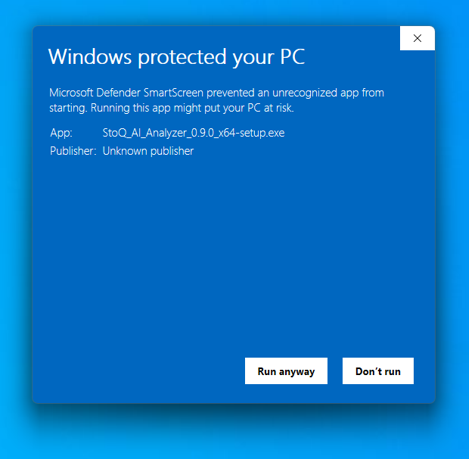
After that, the installer runs normally. あとは通常どおりインストーラーが進みます。
You may be asked about the WebView2 Runtime 「WebView2 ランタイム」を尋ねられることがあります
The app draws its screen with the Microsoft Edge WebView2 Runtime. It ships with Windows 11 and is already on most Windows 10 machines, so usually nothing is asked. If it is missing, the installer asks whether to fetch it, then downloads it from Microsoft and installs it (about 2 MB). Answer Yes — the app cannot start without it. 本アプリは画面の描画に Microsoft Edge WebView2 ランタイムを使います。Windows 11 には標準で入っており、Windows 10 でも多くの場合すでに導入されているため、通常は何も尋ねられません。見つからなかった場合のみ、インストーラーが確認のうえ Microsoft の公式サイトから取得して導入します(約 2 MB)。 「はい」をお選びください — これが無いとアプリは起動できません。
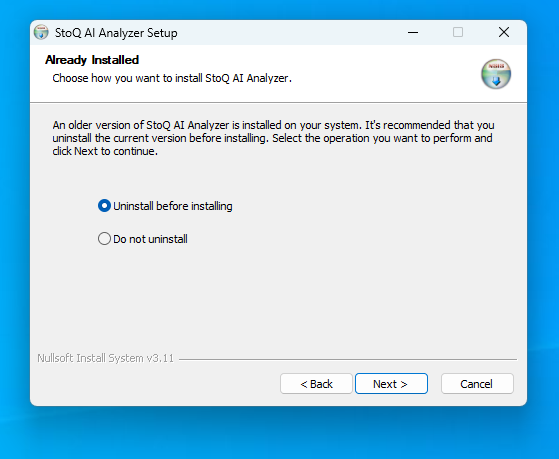
3 Enter the licence keyライセンスキーを入れる
- 1. Start StoQ AI Analyzer. StoQ AI Analyzer を起動します。
- 2. Open Settings → Licence. 設定 → ライセンス認証 を開きます。
-
3.
Paste the key from the e-mail
(
V1-XXXXXXXX-XXXX-XXXX-XXXX-XXXXXXXXXXXX— the leading number is the version generation). メールに記載のキー (V1-XXXXXXXX-XXXX-XXXX-XXXX-XXXXXXXXXXXX。 先頭の数字は世代を表します)をコピー&ペーストで入力します。 - 4. Press Activate. When it says the licence is valid, you are done. ライセンス有効化 を押します。 「ライセンスは有効です」と表示されれば完了です。
Getting started with the appアプリの使いはじめ
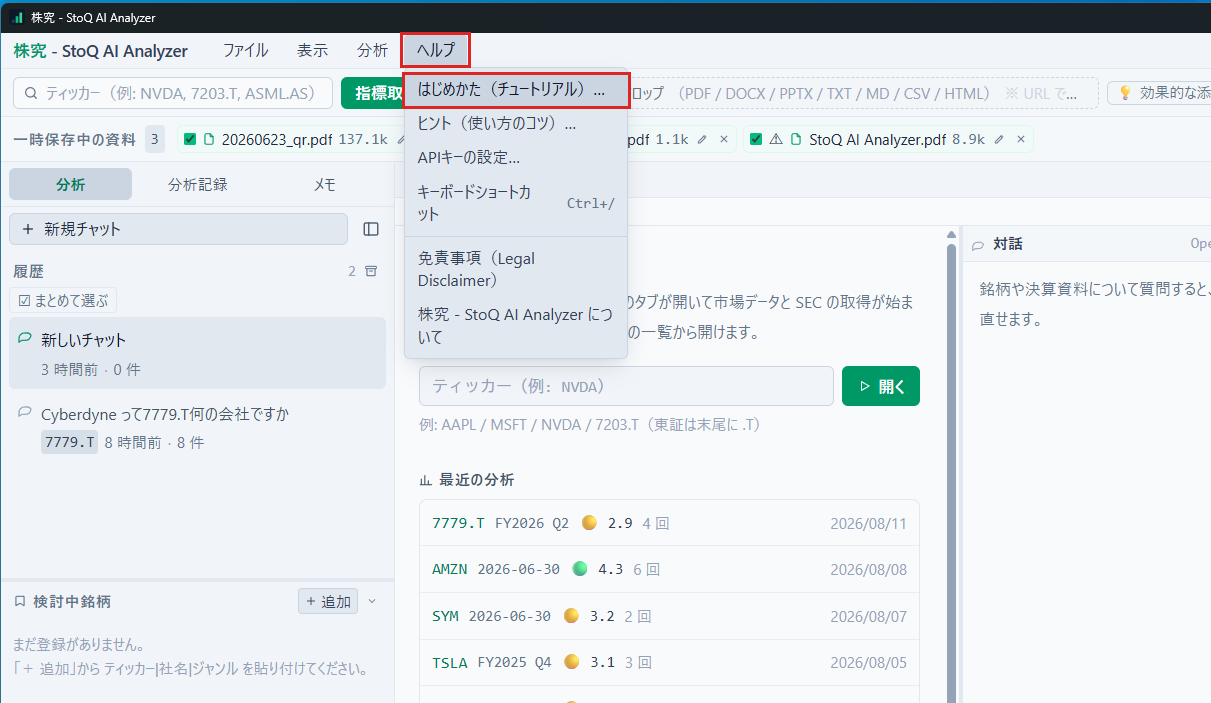
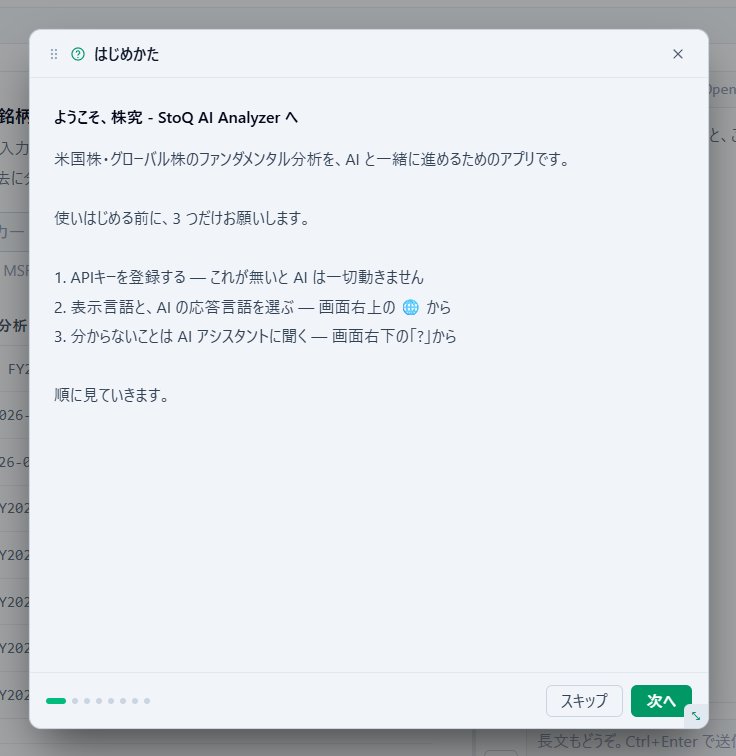
The app carries its own walkthrough. Open Help → Getting started (tutorial) from the menu bar and step through it — it covers the three things you need before your first analysis.
アプリの中にチュートリアルが入っています。メニューバーの ヘルプ → はじめかた(チュートリアル) を開いて順に進めてください。最初の分析を実行する前に必要な 3 点がまとまっています。
If something does not workうまくいかないとき
The licence key is rejected ライセンスキーが通りません
- Check for a stray space before or after the key. Copy and paste rather than typing it. キーの前後に余計な空白が入っていないかご確認ください。手入力ではなくコピー&ペーストを推奨します。
-
The key starts with
Vand a number (V1-). Make sure that part was included in the selection. キーはV+数字 (V1-など)から始まります。 その部分まで選択できているかご確認ください。
I want to use it on another PC 別の PC で使いたい
Keep the key. Install the app on the new PC and enter the same key. One licence covers up to two PCs belonging to you.
キーはそのまま保管してください。新しい PC にアプリを入れ、同じキーを入力すれば有効化できます。 1 つのライセンスは、ご本人がお使いになる 2 台までご利用いただけます。
How do updates work? アップデートはどうなりますか
Fixes and improvements ship as free updates. We e-mail the address you bought with when a new version is available.
不具合修正や改善は無料のアップデートとして提供します。 新しい版が出たら、ご購入時のメールアドレス宛にご案内をお送りします。
I want to remove it アンインストールしたい
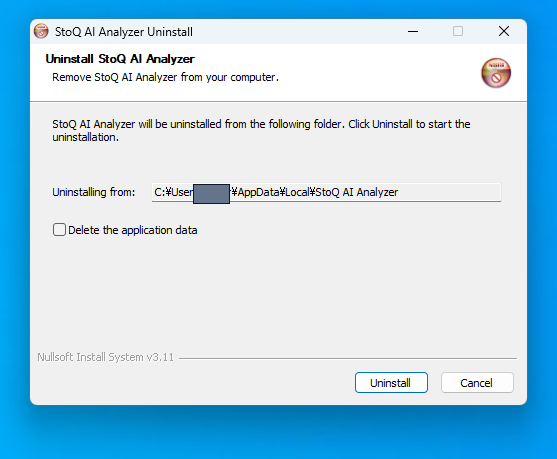
Uninstall from Windows Settings as usual. Leave Delete the application data unticked to keep your saved analyses; tick it to remove everything.
Windows の設定から通常どおりアンインストールできます。 Delete the application data のチェックを外したままにすると 保存済みの分析は残ります。すべて消す場合はチェックを入れてください。
Still stuck?解決しないとき
Reply directly to your purchase e-mail, or write to superpuzanoza@gmail.com. Telling us what you saw on screen and at which step helps us answer in one round. You can also use the contact form, which opens in a new tab. Please do not enter API keys or licence keys.
購入完了メールにそのまま返信いただくか、 superpuzanoza@gmail.com までご連絡ください。どの手順で、画面に何が出たかを 添えていただけると、一度のやりとりでお答えできます。 お問い合わせフォームからも承ります(外部フォームが別のタブで開きます)。 APIキー・ライセンスキーは入力しないでください。